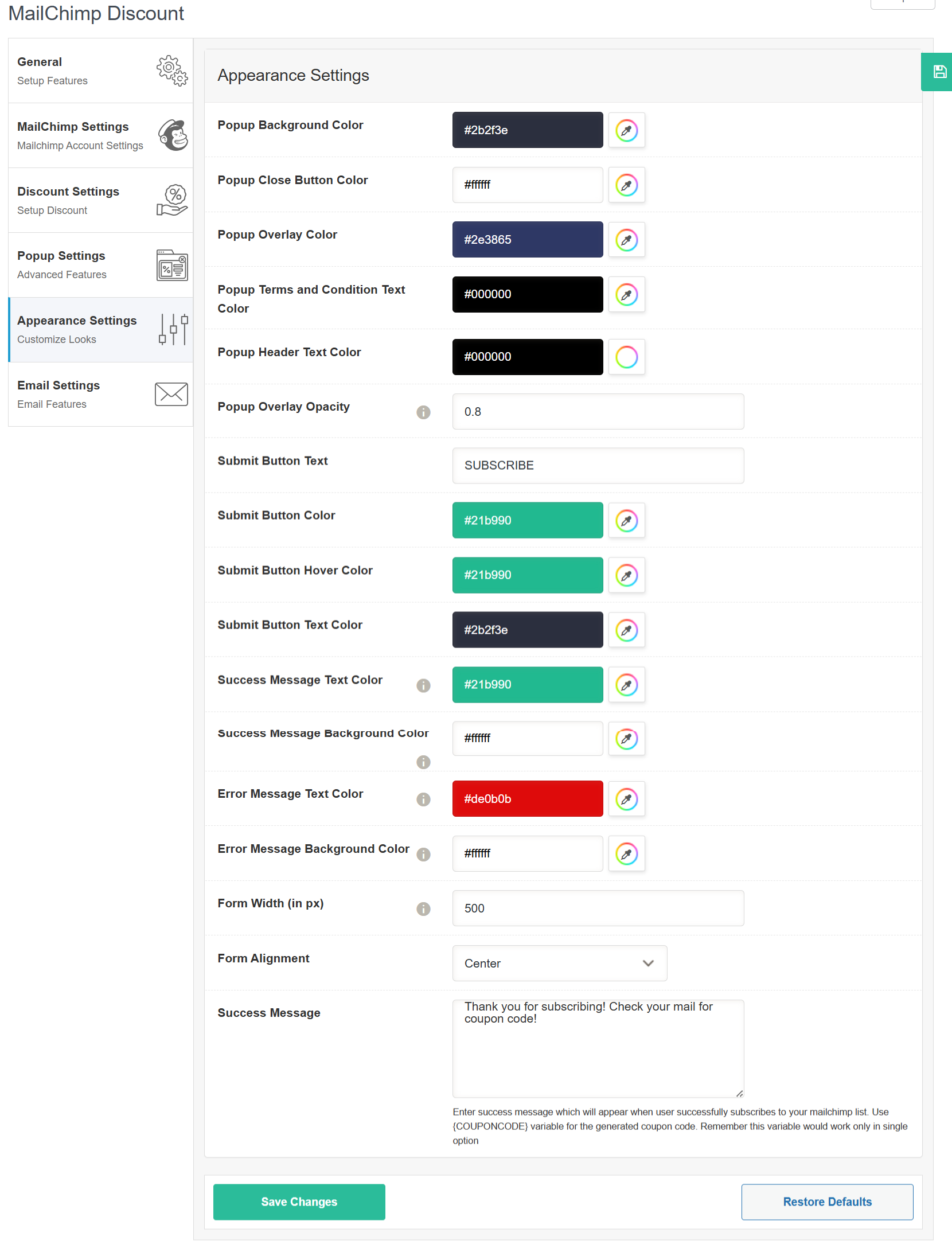
🎨 Appearance Settings #
This section allows you to customize the look and feel of the subscription popup and messages to match your brand style.
-
Popup Background Color
Pick a background color for the popup container using the color picker.
Example:#2b2f3e -
Popup Close Button Color
Sets the color of the popup’s close (×) button.
Example:#ffffff(white) -
Popup Overlay Color
This is the color of the screen overlay behind the popup (the dimmed background).
Example:#2e3865 -
Popup Terms and Condition Text Color
Choose the color for any text related to terms and conditions in the popup. -
Popup Header Text Color
Sets the color of the main header text of the popup. -
Popup Overlay Opacity
Controls how transparent or dark the overlay is.
Value ranges from0(fully transparent) to1(fully opaque).
Example:0.8 -
Submit Button Text
Change the text shown on the form submission button.
Example: “SUBSCRIBE” -
Submit Button Color
Select the color of the submit button’s background.
Example:#21b990 -
Submit Button Hover Color
Sets the background color when a user hovers over the submit button.
Example:#21b990 -
Submit Button Text Color
Pick a color for the text on the submit button.
Example:#2b2f3e -
Success Message Text Color
The text color shown after a user successfully submits the form.
Example:#21b990 -
Success Message Background Color
Background color of the success message area.
Example:#ffffff -
Error Message Text Color
Color of the error text (e.g., for invalid email or required field error).
Example:#de0b0b(red) -
Error Message Background Color
Background color of the error message.
Example:#ffffff -
Form Width (in px)
Set the overall width of the popup form in pixels.
Example:500 -
Form Alignment
Choose where to align the popup form content:-
Left
-
Center
-
Right
-
-
Success Message
Customize the success message that appears after a successful subscription.
You can also use the{COUPONCODE}variable to include the generated discount code.