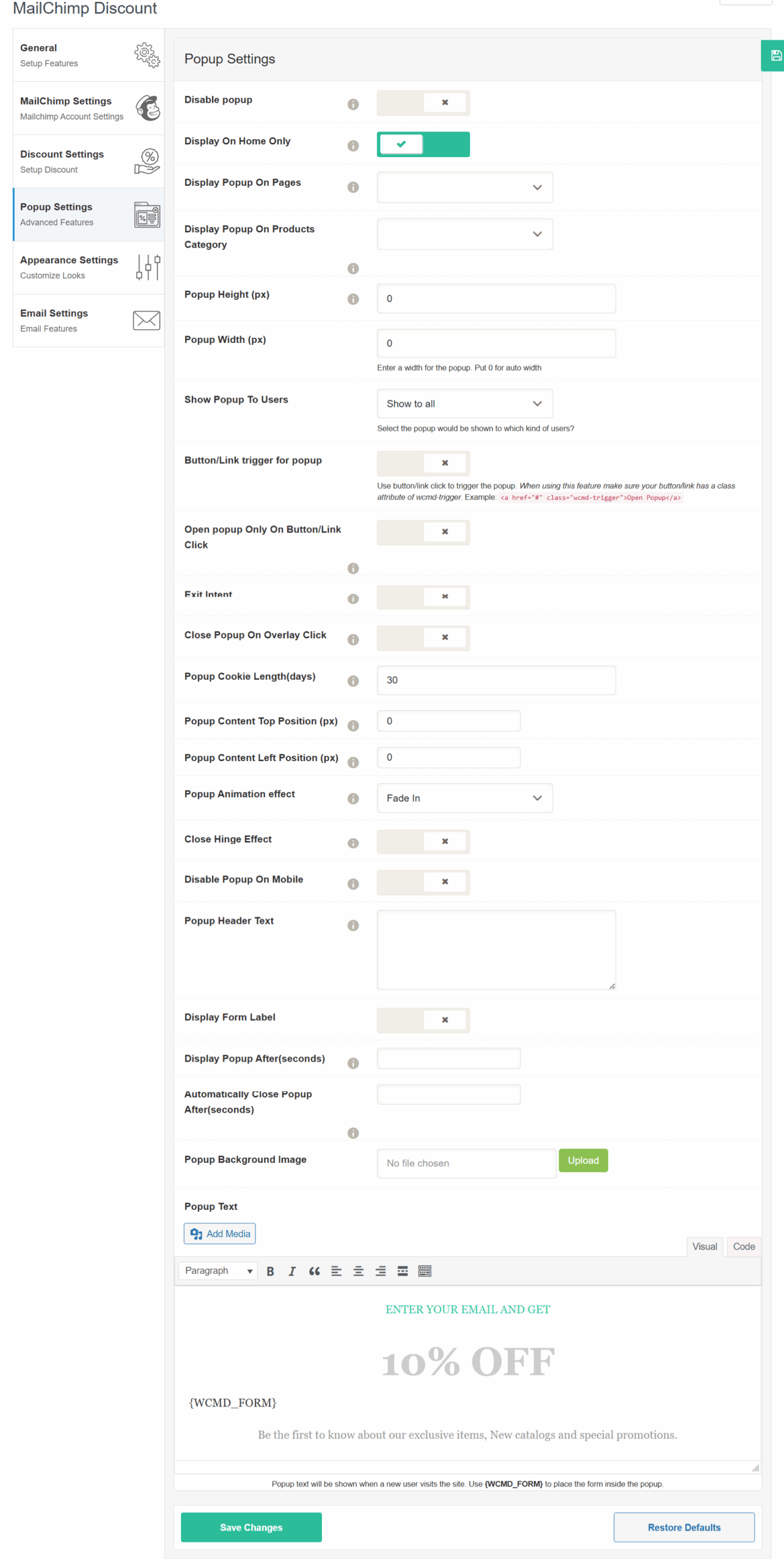
📩 Popup Settings #
These settings let you customize how and when the subscription popup appears on your website.
-
Disable Popup
Toggle this option on to completely disable the popup on the site. -
Display On Home Only
Enable this option to show the popup only on the homepage.
Useful if you want to avoid showing it on product or checkout pages. -
Display Popup On Pages
Select specific pages where the popup should appear.
(Dropdown list of available pages on your site) -
Display Popup On Products Category
Choose specific product categories where the popup should be shown. -
Popup Height (px)
Enter the height of the popup.
Set to0for auto height. -
Popup Width (px)
Enter the width of the popup.
Set to0for auto width. -
Show Popup To Users
Choose who can see the popup:-
Show to all
-
Show to guests only
-
Show to logged-in users only
-
-
Button/Link Trigger for Popup
Enter the number of seconds or conditions under which the popup appears when a user clicks a specific button or link.
Make sure the button has the class: -
Open Popup Only On Button/Link Click
Enable this if you want the popup to appear only when a user clicks the specified trigger button. -
Exit Intent
Enable this to show the popup when the system detects the user is trying to leave the page (mouse moves to close/tab area). -
Close Popup On Overlay Click
Enable this to let users close the popup by clicking outside of it (on the overlay/background). -
Popup Cookie Length (days)
Define how many days the popup should remain hidden after a user closes it once.
Example:30means the popup won’t show again for 30 days after being closed. -
Popup Content Top Position (px)
Adjusts the vertical positioning of the popup content from the top. Useful for fine-tuning layout. -
Popup Content Left Position (px)
Adjusts the horizontal positioning from the left. Set in pixels. -
Popup Animation Effect
Choose how the popup appears on the screen.
Example: Fade In, Slide Down, etc. -
Close Hinge Effect
Adds a “hinge” style animation when the popup is closing. -
Disable Popup On Mobile
Prevent the popup from appearing on mobile devices. -
Popup Header Text
Enter text that will appear as the heading/title of the popup. -
Display Form Label
Enable this to display field labels inside the popup form. -
Display Popup After (seconds)
Automatically show the popup after a certain number of seconds once a user visits the page. -
Automatically Close Popup After (seconds)
Close the popup automatically after the specified number of seconds, even if the user hasn’t interacted. -
Popup Background Image
Upload a background image to visually enhance the popup design. -
Popup Text
Enter the popup message users will see.
You can use{WCMD_FORM}to display the email signup form inside this area