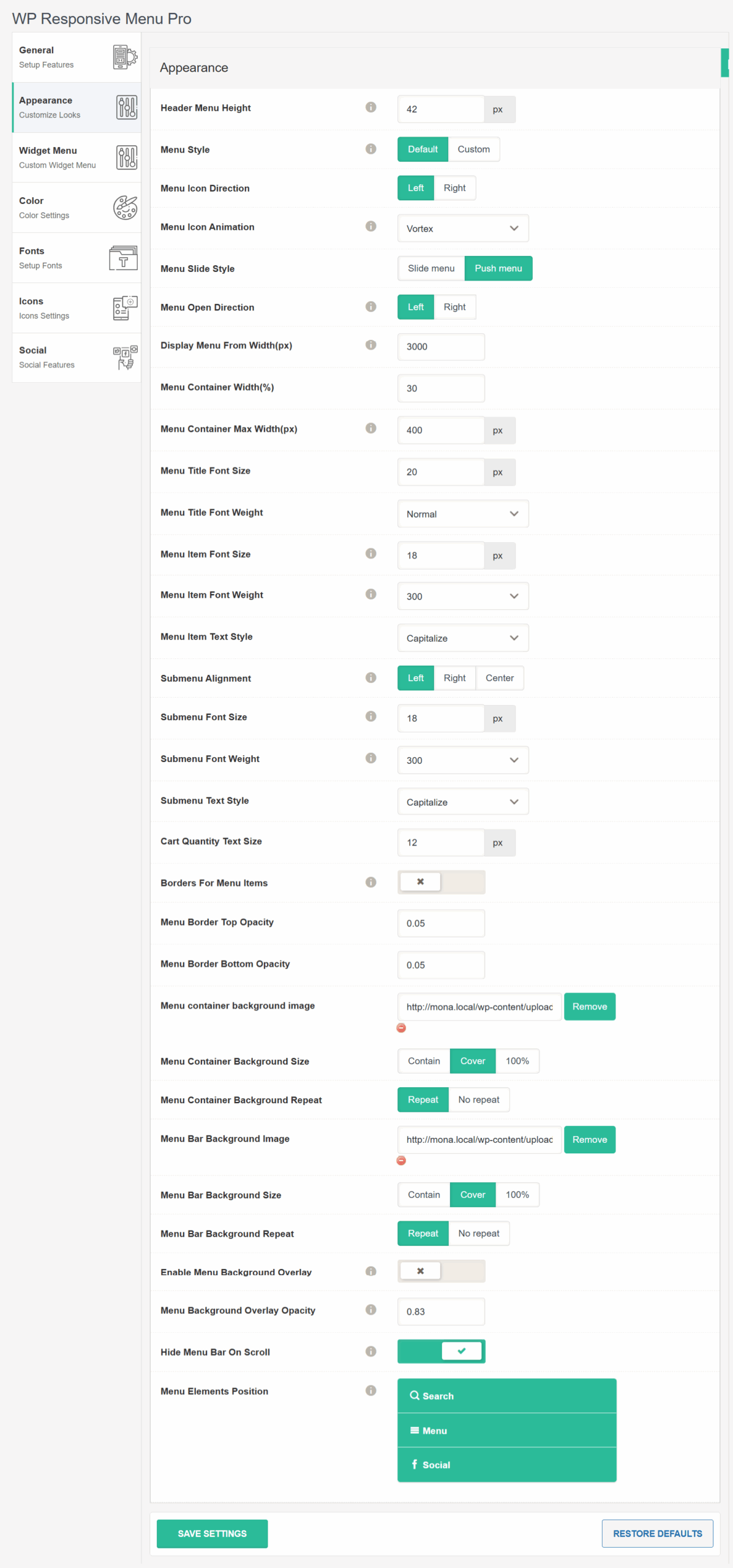
- 🎨 Appearance Settings
- 📏 Header Menu Height
- 🧩 Menu Style
- ↔️ Menu Icon Direction
- 🌀 Menu Icon Animation
- 🎞 Menu Slide Style
- 🔽 Menu Open Direction
- 🖥 Display Menu From Width (px)
- 📐 Menu Container Width (%)
- 📦 Menu Container Max Width (px)
- 🔠 Menu Title Font Size
- 🆎 Menu Title Font Weight
- 📄 Menu Item Font Size
- 🅱️ Menu Item Font Weight
- ✍️ Menu Item Text Style
- 📐 Submenu Alignment
- 🔤 Submenu Font Size
- 🅱️ Submenu Font Weight
- ✍️ Submenu Text Style
- 🛒 Cart Quantity Text Size
- 🧱 Borders for Menu Items
- 📏 Menu Border Top / Bottom Opacity
- 🖼 Menu Container Background Image
- 🖼 Menu Bar Background Image
- 🌫 Enable Menu Background Overlay
- 💡 Menu Background Overlay Opacity
- ⬇️ Hide Menu Bar On Scroll
- 🧭 Menu Elements Position
- Appearance Setting option screenshot:
🎨 Appearance Settings #
Customize the layout, typography, and animation of your responsive menu with the settings below. These options ensure your menu is visually aligned with your website design and provides the best user experience across all devices.
📏 Header Menu Height #
Set the height of the top menu bar in pixels. This helps you match the header height with your website’s overall layout.
🧩 Menu Style #
Choose between two styles:
-
Default – Displays both the menu icon and the menu bar.
-
Custom – Only shows the menu icon without the full bar for a more minimal look.
↔️ Menu Icon Direction #
Position the menu icon either on the left or right side of the header, depending on your design preference.
🌀 Menu Icon Animation #
Select the animation effect applied when the menu icon is toggled. Example: Vortex, Spin, Elastic, etc.
🎞 Menu Slide Style #
Choose how the menu appears:
-
Slide Menu – Slides over existing content. Offers 4 directions: Left, Right, Top, Bottom.
-
Push Menu – Pushes your site’s content aside to display the menu. Supports Left and Right directions.
🔽 Menu Open Direction #
Sets the direction from which the menu will open. Options include:
-
Left
-
Right
-
Top
-
Bottom
(Availability depends on the chosen menu slide style.)
🖥 Display Menu From Width (px) #
Define the minimum screen width (in pixels) at which the responsive menu should activate. Helps you control visibility across devices (e.g., show only on tablets and mobiles).
📐 Menu Container Width (%) #
Specify the width of the menu container in percentage relative to the screen size.
📦 Menu Container Max Width (px) #
Set a maximum limit for how wide the menu container can grow, regardless of screen size.
🔠 Menu Title Font Size #
Set the font size for the menu title text shown on the menu bar.
🆎 Menu Title Font Weight #
Adjust the font weight (e.g., normal, bold) of the menu title for better typography control.
📄 Menu Item Font Size #
Define the font size for each menu item displayed inside the menu container.
🅱️ Menu Item Font Weight #
Set the thickness of the menu item text (e.g., 300, 400, 700).
✍️ Menu Item Text Style #
Choose text casing for menu items:
-
Capitalize
-
Uppercase
-
Lowercase
📐 Submenu Alignment #
Align submenu text and structure to the Left, Right, or Center within the parent menu.
🔤 Submenu Font Size #
Specify the font size for submenu items.
🅱️ Submenu Font Weight #
Set how bold or light the submenu font should appear.
✍️ Submenu Text Style #
Set the text case for submenu items (Capitalize, Uppercase, Lowercase).
🛒 Cart Quantity Text Size #
Customize the font size for the cart item count badge (only applicable if WooCommerce is integrated).
🧱 Borders for Menu Items #
Toggle this to enable or disable borders between each menu item in the list.
📏 Menu Border Top / Bottom Opacity #
Set the transparency for the top and bottom borders of menu items using values between 0 (invisible) and 1 (fully visible).
🖼 Menu Container Background Image #
Upload a custom background image for the menu container. Control how the image appears using:
-
Background Size: Contain / Cover / 100%
-
Repeat: Repeat / No Repeat
🖼 Menu Bar Background Image #
Set a background image for the top menu bar. Includes similar controls for size and repeat behavior.
🌫 Enable Menu Background Overlay #
Enable this to darken or blur the background of your website when the menu is open, helping users focus on the menu.
💡 Menu Background Overlay Opacity #
Adjust the transparency level of the background overlay (0 = fully transparent, 1 = fully opaque).
⬇️ Hide Menu Bar On Scroll #
Enable this feature to hide the top menu bar when scrolling down and show it again when scrolling up. Ideal for enhancing visibility and screen space on mobile.
🧭 Menu Elements Position #
Reorder the key menu elements:
-
🔍 Search
-
📂 Menu
-
🌐 Social
Use this to control the arrangement of elements inside the menu panel.