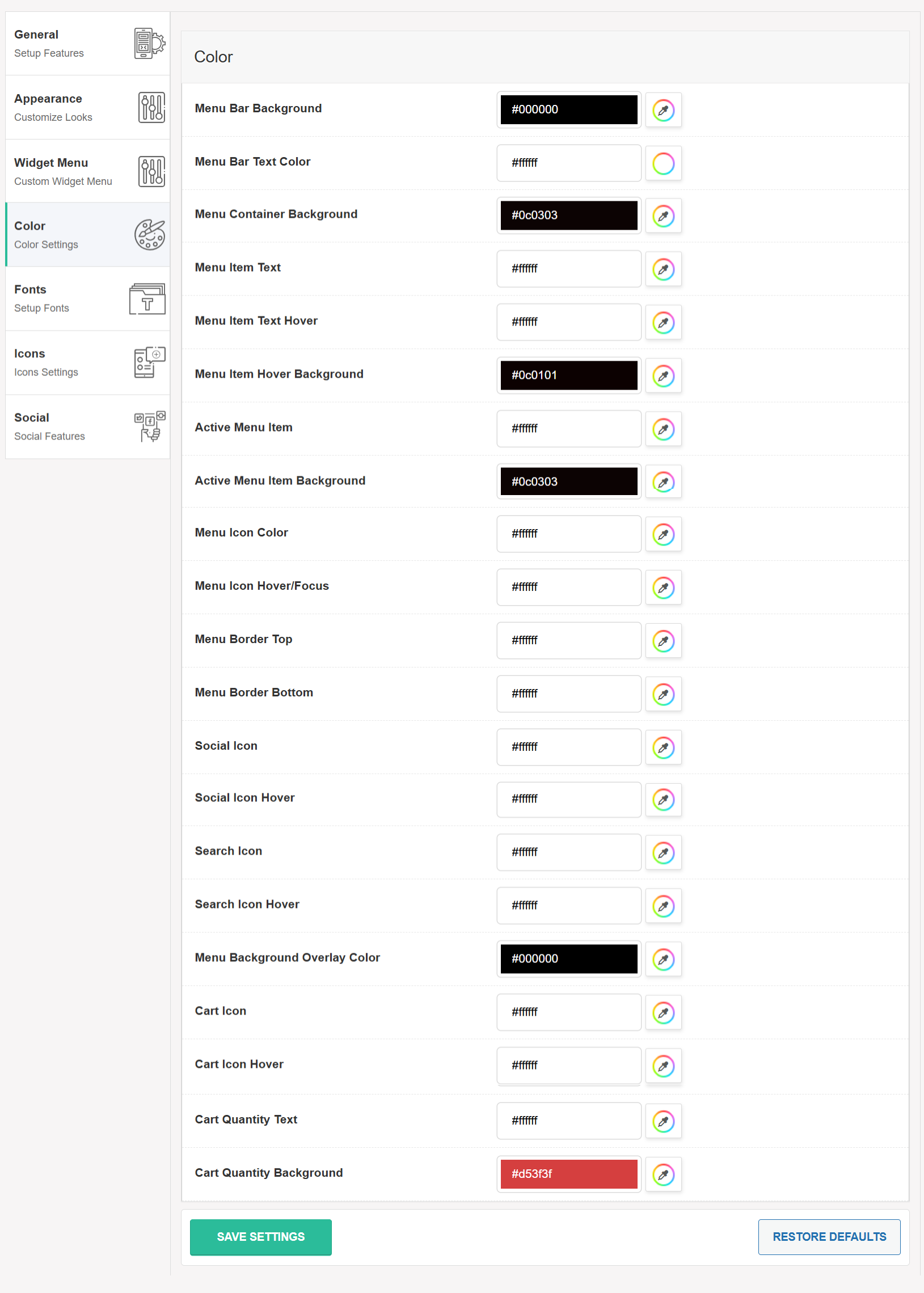
🎨 Color Settings #
In this section, you can customize various color combinations to match your website’s branding or design preferences.
🛠 Available Color Options: #
-
Menu Bar Background
Sets the background color of the top menu bar where the toggle icon and logo appear. -
Menu Bar Text Color
Changes the color of the text (like the menu title) displayed on the menu bar. -
Menu Container Background
Defines the background color of the expanded slide-out menu panel. -
Menu Item Text
Sets the default text color for all menu items inside the menu container. -
Menu Item Text Hover
Changes the color of a menu item’s text when a user hovers over it. -
Menu Item Hover Background
Defines the background color shown when a user hovers over a menu item. -
Active Menu Item
Sets the text color of the currently active menu item, indicating the page currently being viewed. -
Active Menu Item Background
Specifies the background color for the active menu item to highlight it. -
Menu Icon Color
Sets the color of the icons within the menu (e.g., dropdown arrows or custom icons). -
Menu Icon Hover/Focus
Changes the icon color when hovered or focused (keyboard navigation). -
Menu Border Top
Defines the color of the top border of the menu container or each menu item (depending on the theme). -
Menu Border Bottom
Sets the color of the bottom border, usually applied under menu items. -
Social Icon
Sets the color of social media icons placed inside or after the menu. -
Social Icon Hover
Changes the color of social icons when hovered over. -
Search Icon
Defines the color of the magnifying glass/search icon. -
Search Icon Hover
Sets the hover color for the search icon when a user points to it. -
Menu Background Overlay Color
Applies a semi-transparent overlay background color to the main site when the menu is open. Helps in highlighting the menu by dimming the rest of the page. -
Cart Icon
Changes the default color of the WooCommerce cart icon on the menu. -
Cart Icon Hover
Sets the hover color for the cart icon to indicate interactivity. -
Cart Quantity Text
Defines the color of the number displayed inside the cart (item count). -
Cart Quantity Background
Sets the background color behind the cart quantity text (typically a circular or square badge).
Color options setting screenshot: