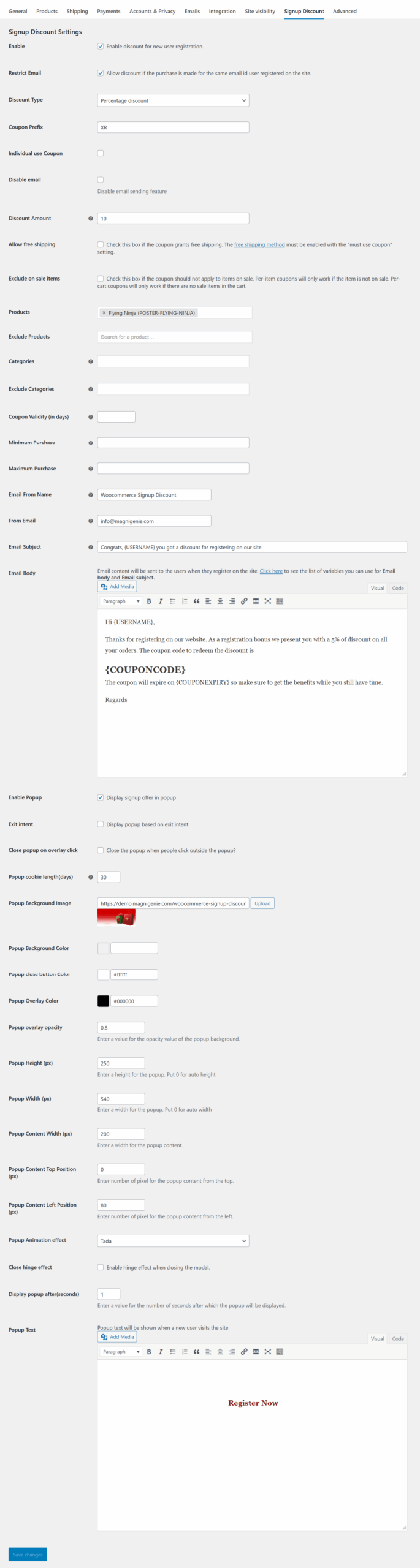
📝 WooCommerce Signup Discount – Settings Breakdown #
🔘 Enable #
Enable discount for new user registration
Activates the entire signup discount system. If unchecked, no discounts will be applied.
✉️ Restrict Email #
Allow discount if the purchase is made for the same email ID used during registration
Ensures the discount is only valid for orders placed using the same email address that was used during signup.
💰 Discount Type #
Choose between:
-
Percentage discount
-
Fixed cart discount
-
Fixed product discount
Defines how the discount will be calculated.
🏷️ Coupon Prefix #
Default:
XR
Set a custom prefix for the generated coupon code (e.g., XR10OFF).
🔒 Individual Use Coupon #
[Optional]
Prevents combining this coupon with others.
✉️ Disable Email #
[Optional]
Stops sending the coupon code email notification to the user.
💵 Discount Amount #
Set the discount value (either a percentage or fixed amount depending on the type selected above).
🚚 Allow Free Shipping #
Enable if the coupon should also grant free shipping.
Note: You must have the “must use coupon” option enabled in WooCommerce shipping settings.
❌ Exclude Sale Items #
Prevents the coupon from applying to already discounted products.
🛒 Products / Categories / Excludes #
-
Products: Select products that this coupon will apply to.
-
Exclude Products: Choose products that the coupon should not apply to.
-
Categories: Apply the coupon only on products from specific categories.
-
Exclude Categories: Prevent discount on items from specific categories.
⌛ Coupon Validity (in days) #
Define how many days the coupon remains valid after being issued.
💰 Minimum Purchase / Maximum Purchase #
Set order value limits for minimum or maximum cart total to apply this coupon.
📧 Email Settings #
Email From Name #
Set the sender name in the email that delivers the coupon.
From Email #
Set the email address that sends the discount email.
Email Subject #
Default:
Congrats, {USERNAME} you got a discount for registering on our site
Customize with variables like{USERNAME}for personalization.
Email Body #
Use variables like:
-
{USERNAME} -
{COUPONCODE} -
{COUPONEXPIRY}
💡 Example Content:
💬 Popup Settings #
Enable Popup #
Show a discount offer popup on new user visits.
Exit Intent #
[Optional]
Display the popup when the user is about to leave the site.
Close Popup on Overlay Click #
[Optional]
Allow closing the popup by clicking outside its content.
Popup Cookie Length (in days) #
Number of days to suppress popup repeat once it’s shown.
Popup Background Image #
Upload an image to show as background of the popup.
Popup Styling Options #
-
Popup Background Color
-
Popup Close Button Color
-
Popup Overlay Color
-
Popup Overlay Opacity (e.g., 0.8)
Popup Dimensions #
-
Height (px): e.g., 250
-
Width (px): e.g., 540
-
Content Width (px): e.g., 200
-
Content Top Position (px): e.g., 0
-
Content Left Position (px): e.g., 80
Popup Animation Effect #
Choose from effects like
Tada,Bounce, etc.
Close Hinge Effect #
Optional close animation for popup exit.
Display Popup After (seconds) #
Set how long (in seconds) after a page loads to trigger the popup.
Popup Text #
Use the editor to customize the text or HTML content inside the popup (e.g., “Register Now”).
💾 Save Changes #
Make sure to click Save Changes to apply all modifications.