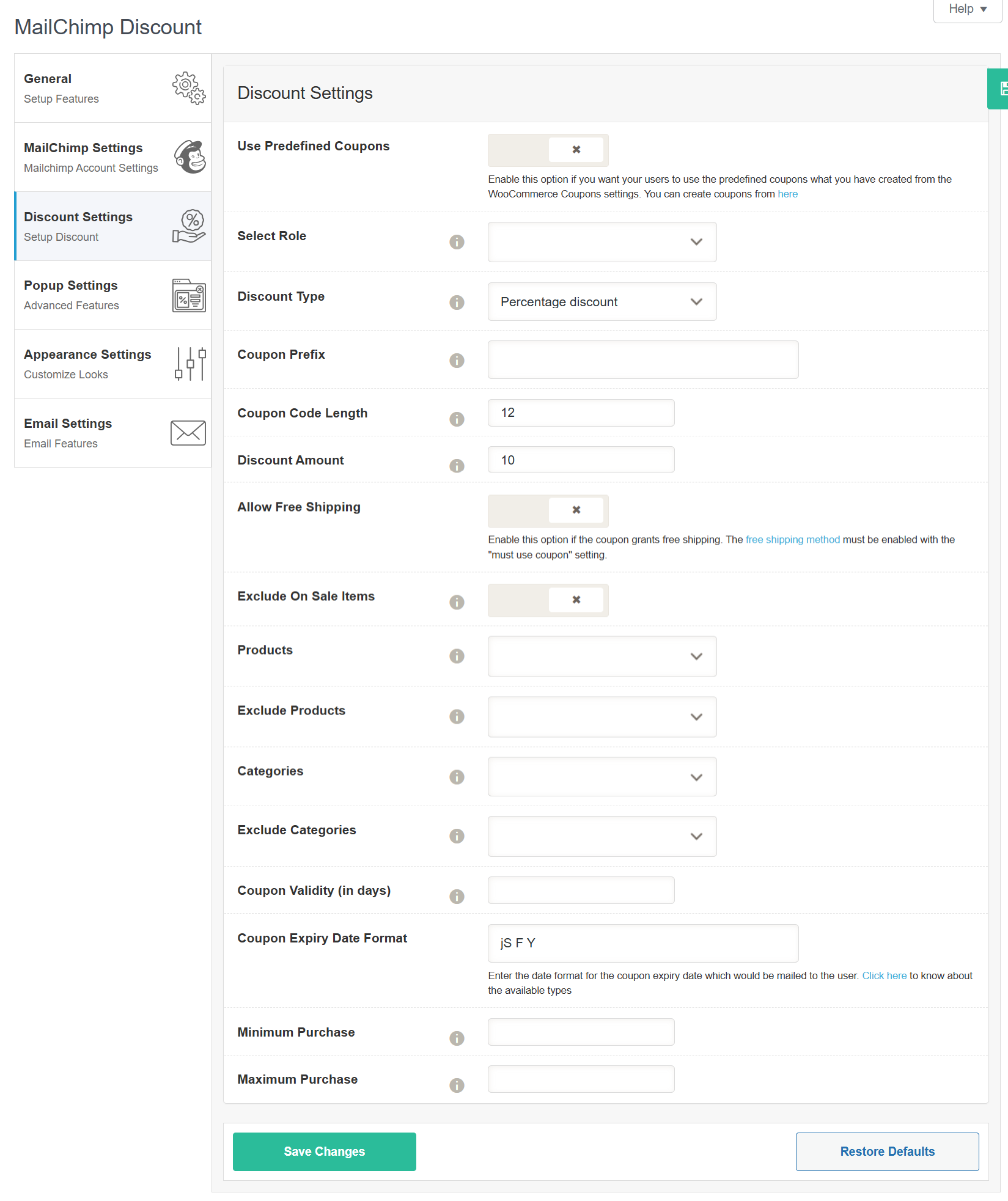
💸 Discount Settings #
This section allows you to configure the discount that will be offered to users after successful Mailchimp subscription.
-
Use Predefined Coupons
Enable this option if you want to use coupons that you have already created in WooCommerce → Coupons.
🔹 When disabled, the plugin will automatically generate a unique coupon. -
Select Role
Select the user role to which the discount coupon should be assigned.
Example: Customer -
Discount Type
Choose how the discount should be applied.
Options include:-
Percentage Discount
-
Fixed Cart Discount
-
Fixed Product Discount
-
-
Coupon Prefix
Define a prefix for the generated coupon code.
Example:NEWSUB-→NEWSUB-9D8FE72D -
Coupon Code Length
Specify how many characters the auto-generated coupon code should contain.
Example:12will generate something like9F7E2B91C4A3 -
Discount Amount
Set the discount amount to be applied.
Example:10(If Percentage Discount is selected, it means 10% off) -
Allow Free Shipping
Enable this option if the coupon should also grant free shipping.
🔸 Note: WooCommerce’s “Free Shipping” method must be enabled for this to work. -
Exclude On Sale Items
Prevent users from applying the coupon to already discounted (on-sale) products. -
Products
Choose specific products for which this coupon should be valid. -
Exclude Products
Choose specific products for which this coupon should not be valid. -
Categories
Select specific product categories the coupon should apply to. -
Exclude Categories
Choose categories to exclude from the coupon’s effect. -
Coupon Validity (in days)
Enter how many days the generated coupon should remain valid from the date of subscription. -
Coupon Expiry Date Format
Define the format of the coupon expiry date (shown in email).
Example:jS F Y→ Results in “1st July 2025” -
Minimum Purchase
Set a minimum purchase amount required to apply the coupon. -
Maximum Purchase
Set a maximum purchase limit beyond which the coupon will no longer be valid.