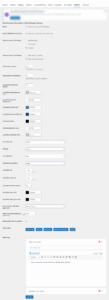
🔧 WooCommerce Accordions & Tabs Manager Settings #
✅ Enable #
-
Description: This option activates the Accordions & Tabs Manager functionality for your WooCommerce product pages.
-
Use Case: Must be checked to use any of the plugin’s features.
✅ Enable WOOATM Custom Tabs #
-
Description: Allows you to create your own custom tabs and assign them globally or per product.
-
Use Case: Use this to add additional product information (e.g., Shipping Policy, Return Info, etc.).
🧩 WooCommerce Tabs Design #
-
Options:
-
Horizontal Tabs: Traditional tab layout across the top.
-
Vertical Tabs: Tabs shown along the left-hand side.
-
Accordion: Collapsible section layout – ideal for mobile or long product descriptions.
-
🔽 WooCommerce Tabs Position #
-
Options:
-
After Product Summary: Tabs appear immediately after product title, price, and short description.
-
After Product Description: Tabs appear below the full product description.
-
📏 Gap between tabs (px) #
-
Description: Controls the horizontal spacing between each tab.
-
Default: 10 pixels.
📏 Gap between accordions (px) #
-
Description: Controls the vertical space between two accordion items.
-
Default: 5 pixels.
🔠 Accordion/Tab title font size (px) #
-
Description: Font size for the tab or accordion heading/title.
-
Default: 16 pixels.
🎨 Style Customization Options #
🎨 Accordion/Tab Background Color #
-
Sets the default background color of each tab or accordion.
🎨 Accordion/Tab Active Background #
-
Background color for the active (opened or selected) tab/accordion.
🎨 Accordion/Tab Title Color #
-
Text color of the tab or accordion title.
🎨 Accordion/Tab Active Title Color #
-
Text color when the tab or accordion is active/open.
🎨 Content Text Color #
-
Font color of the content/text inside tabs or accordions.
🎨 Content Background Color #
-
Background color of the content area within tabs or accordions.
🎨 Accordion/Tab Border Color #
-
The border color surrounding each tab or accordion section.
💠 Design Styles #
✨ Accordion Style #
-
Choose from predefined styles like Style 1, Style 2, Style 3, etc., which change layout and padding.
✨ Tab Style #
-
Choose visual styles for the tabs (similar to accordion styles).
↔️ Tabs Alignment #
-
Options: Left, Center, Right
-
Purpose: Aligns tab titles horizontally.
↪️ Accordion Icon Position #
-
Options: Left / Right
-
Controls where the icon (e.g., + / -) appears in the accordion header.
🧩 Accordion Icon #
-
Choose which icon appears when the accordion is closed.
🧩 Accordion Active Icon #
-
Icon to display when the accordion is open.
🔠 Accordion Icon Font Size (px) #
-
Size of the icons (e.g., plus/minus) used in the accordion.
🎯 Accordion Arrow Color #
-
Color of the arrow or icon when accordion is collapsed.
🎯 Accordion Active Arrow Color #
-
Color of the arrow or icon when accordion is expanded.
⚙️ Functionality Settings #
🧷 Keep accordions like when page loads #
-
Controls initial state:
-
All open
-
All closed
-
Keep user’s last state
-
📱 Tabs to accordion break point width in px #
-
Responsive design feature.
-
Converts tabs into accordions below specified screen width (e.g., 768px for tablets).
🌍 Enable global tabs for products #
-
Enables tabs you create in the Global Tabs section to appear on all products automatically.
🧾 Tabs Sorting #
-
Drag and drop or click to reorder how tabs appear on the frontend.
-
Common tabs:
-
Custom Tab
-
Reviews
-
Description
-
Additional Information
-
Global
-
✍️ Global Tabs Section (Editor) #
-
Add content that appears on every product page.
-
Includes:
-
Tab Title
-
Rich Text Editor (with media support)
-
Add multiple global tabs
-