Table of Contents
📧 Email Settings #
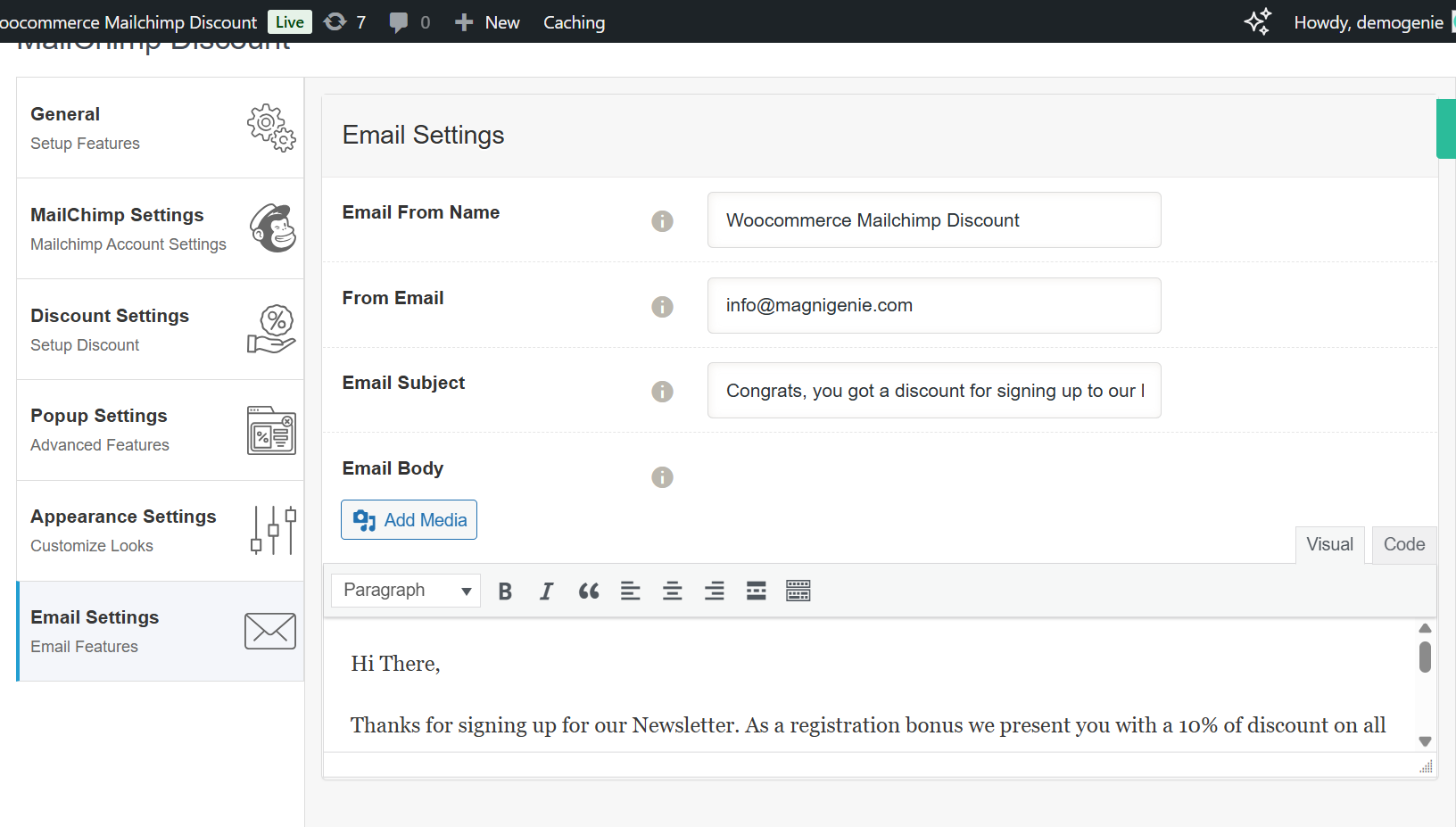
This section allows you to customize the confirmation email sent to users after they successfully subscribe to your newsletter via the popup.
-
Email From Name
Define the sender name that appears in the recipient’s inbox.
Example: Woocommerce Mailchimp Discount -
From Email
Specify the email address from which the confirmation message will be sent.
Make sure to use a valid and verified email address.
Example: [email protected] -
Email Subject
Set the subject line of the confirmation email that your users will receive.
Example: Congrats, you got a discount for signing up to our… -
Email Body
Compose the main content of the email using the built-in WordPress editor.-
You can include headings, paragraphs, images, and coupon information.
-